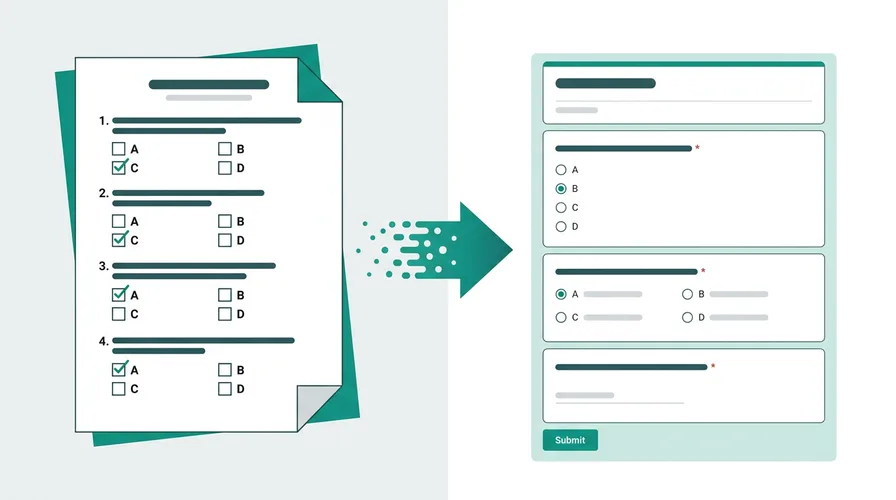
Upload a paper form scan. Get a Google Form back.
Many guides tell you to run OCR elsewhere, clean up the text, then paste into a form builder. Doc2Form skips that workflow: upload the scanned PDF to Google Form pipeline runs in one step - Gemini reads the page image, infers questions and options, and the Google Forms API creates the form.
How scanned PDF conversion works in Doc2Form
Scanned PDFs are different from digitally-created PDFs. A digital PDF has text data embedded in the file - the computer already knows what the words are. A scanned PDF is essentially an image of a page. The text needs to be "read" before it can be processed.
Doc2Form handles this by sending the scanned PDF to Gemini AI, which has vision capabilities that can read text from images. Here's the flow:
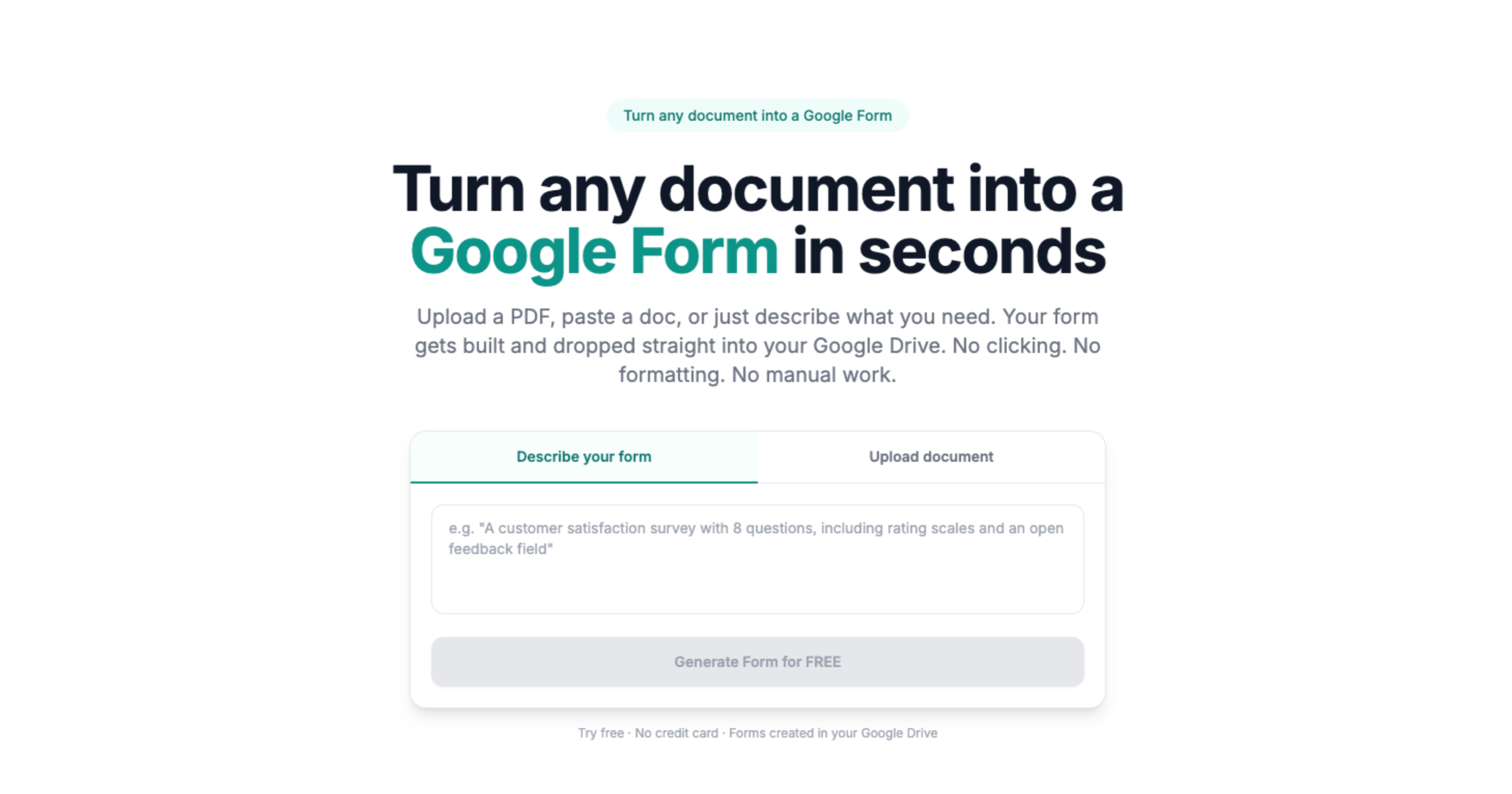
- Go to doc2form.dev and sign in with your Google account
- Choose "Upload" and select your scanned PDF (up to 5 MB)
- Doc2Form sends the scan as a base64 image to Gemini AI
- Gemini reads the text from the scan, identifies questions, answer options, and field types
- The Google Forms API creates a Google Form in your Drive
- You review the form and fix any misread text
The critical variable is scan quality. Clear, high-resolution scans of printed forms convert well. Blurry, skewed, or handwritten pages produce unreliable results.
Based on a sample of 1,775 Google Forms generated by Doc2Form users, containing 55,761 questions across 47 languages. That is an average of 31 questions per form - roughly 21 minutes saved per form versus rebuilding each question by hand in the Forms editor (assuming ~40 seconds per question).
Tips for better scan quality
The AI can only work with what it can read. Here's how to get better results:
- Resolution: Scan at 300 DPI or higher. Most modern scanners default to this. Phone cameras should be in well-lit conditions.
- Alignment: Keep the paper straight. Skewed scans make text harder to read, especially for options arranged in columns.
- Contrast: Dark text on white paper works best. Colored paper, light gray text, or watermarks reduce accuracy.
- Cleanliness: Avoid scans with hand-drawn marks, stamps, coffee stains, or pen annotations over the printed text.
- Single pages: If your form is multiple pages, make sure each page is scanned in the correct order and orientation.
If you have the original digital file (Word or PDF from a computer), always use that instead. Digital files consistently produce better results than scans.
What gets detected - and what doesn't
With a good scan, Doc2Form can identify:
- Printed question text with clear numbering
- Checkbox squares (☐) and their labels
- Radio button circles (○) with options
- Blank lines for short-answer responses
- Tables with column/row headers
- Section headers if they're in larger or bold text
What typically doesn't work:
- Handwritten content - the AI may misread or skip handwritten text entirely
- Filled-in forms - if someone already wrote answers on the form, the AI may confuse answers with question text
- Decorative borders and graphics - these can interfere with text detection
- Very small text - footnotes and fine print below ~8pt may be missed
Do it yourself - free with Google Apps Script
Doc2Form is open source. You can run it for free using Google Apps Script.
Here's the setup:
- Get a free Gemini API key from Google AI Studio
- Go to Google Apps Script and create a new project
- Copy the files from the Doc2Form GitHub repo:
code.gs,Prompts.gs,Index.html, andappsscript.json - Add your API key as a script property (
GEMINI_API_KEY) - Deploy as a web app
The script sends scanned PDFs as base64 binary to the Gemini API. Gemini's vision capabilities handle the text extraction - no separate OCR tool needed.
Full setup takes about 5 minutes. Instructions are in the README.
Limitations - honest expectations
Scanned PDFs are the hardest input type for any conversion tool. Here's what to expect:
- Accuracy varies: Clean scans of printed forms usually convert cleanly; you review labels before sharing. Blurry or skewed scans need more manual fixes.
- No handwriting support: Handwritten forms don't convert. The AI needs printed text.
- Slower processing: Scanned PDFs take longer to process than digital files because image analysis is more compute-intensive.
- Better alternatives exist: If you have the original Word or PDF file, use that instead. If you can retype the form, describe mode may be faster than scanning and converting.
Most converters parse a PDF text layer, which a scan does not have. That is the line in Doc2Form vs Pirai AI and in the PDF converter roundup. If your IT team will not grant Drive access, Pirai's Apps Script path is the other honest option.
Sources
- Google Forms API - programmatic form creation after AI extracts structure from your file.
- Google Apps Script - runtime for the open-source self-host path in your Google account.
- Gemini API - document structure analysis for question and field detection.
Common questions
How to make a PDF into a form (Google Form)?
When people search how to make a pdf into a form, they usually want an online form, not a fillable PDF. Upload the PDF (digital or scanned) to Doc2Form, let AI extract questions, and open the Google Form in Drive. See also how to convert PDF to Google Form for a full step-by-step guide.
Is it better to scan my form or just describe it?
If your form has 10 or fewer questions, describe mode is probably faster. Type "Create a patient intake form with name, date of birth, insurance provider, reason for visit" and skip the scanning step. For complex forms with 20+ questions and specific option lists, scanning is worth the effort.
What scanner settings should I use?
300 DPI, color or grayscale (not black & white mode), PDF output format. Most multi-function printers default to these settings. If using a phone camera, make sure the image is in focus and well-lit.
Can I convert a scanned Word document?
If someone scanned a printed Word document to PDF, Doc2Form will process it as a scanned PDF (image-based). For better results, ask for the original .docx file and upload that instead.
Will it work with forms in other languages?
Gemini supports many languages. Forms in English, Spanish, French, German, Portuguese, and other major languages can be processed. Character-based languages (Chinese, Japanese, Korean) may have lower accuracy depending on scan quality.
Is it really free?
Your first form is free - no credit card needed. After that, credit packs are available. Or self-host the open-source version for unlimited free conversions.