Role & industry examples: Teachers · Recruiters · Summer camps
Upload any PDF. Get a Google Form in 60 seconds.
If you want to convert a PDF to a Google Form without retyping every field, you need a dedicated converter. Google Forms doesn't import PDFs natively - you can't drag a file in and get a form out. Doc2Form fills that gap with Gemini AI and the Google Forms API: native Form, your Drive, no copy-paste.
Here's how it works:
- Go to doc2form.dev and sign in with your Google account
- Choose "Upload" and select your PDF (up to 5 MB)
- Doc2Form sends your document to Gemini AI, which reads the content and identifies questions, answer options, sections, and field types
- The Google Forms API creates a native Google Form in your Drive with the extracted structure
- You get an edit link and a share link - review the form, tweak anything that needs adjusting, and send it out
The whole process takes under a minute for most documents. Your PDF isn't stored after the form is created.
Based on a sample of 1,775 Google Forms generated by Doc2Form users, containing 55,761 questions across 47 languages. That is an average of 31 questions per form - roughly 21 minutes saved per form versus rebuilding each question by hand in the Forms editor (assuming ~40 seconds per question).
Turn a PDF into a Google Form in three steps
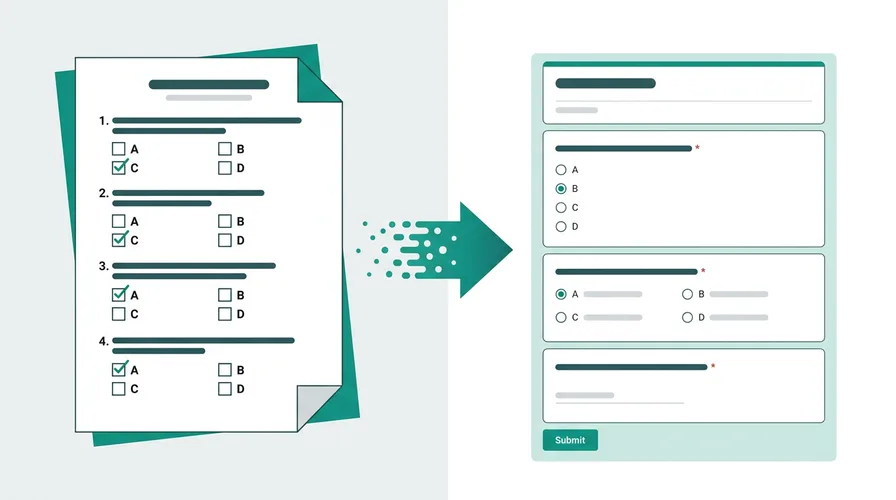
People search turn pdf into google form when they want a Form, not a fillable PDF. Google Forms still will not ingest a PDF natively. Doc2Form compresses the workflow to three steps:
- Upload the PDF at doc2form.dev (digital PDF or many scans up to 5 MB). Sign in with the Google account that should own the Form.
- Let Gemini extract structure - question text, choices, sections, scales - and map them to Google Form field types. You do not retype options in the editor first.
- Open the Form in your Drive, review labels and required fields, then share the link or connect responses to Sheets.
That is the full turn PDF into Google Form path: file in, native Form out. Messy scans may need a quick cleanup pass; see scanned PDF to Google Form for photo and low-quality files. For a Google Doc export, see Google Doc to Google Form. For AI across all input types, see the AI Google Form Generator hub.
What Doc2Form detects in your PDF
The AI reads the document structure and maps what it finds to Google Form question types:
- Multiple choice questions with lettered or numbered options become radio buttons
- Checkbox lists ("select all that apply") become checkbox fields
- Short answer prompts (name, email, ID number) become short text fields
- Open-ended questions ("describe your experience") become paragraph fields
- Dropdown menus with predefined options stay as dropdowns
- Rating scales (1-5, 1-10, strongly disagree to strongly agree) become linear scales
- Date and time fields become date/time pickers
- Sections and page breaks become form sections
Clear formatting helps accuracy. PDFs with numbered questions, labeled options, and visible section breaks convert best. Dense paragraphs without clear question structure will produce less reliable results.
Real-world examples
These are anonymized outcomes from hosted Doc2Form runs. Your file will differ, but the pattern is typical: most structure lands correctly; you tidy labels in the Forms editor before sharing.
Teacher: paper quiz PDF (4 pages, 820 KB)
A high school teacher uploaded a scanned unit test: 24 multiple-choice items and 3 short-answer prompts spread across four pages. Doc2Form pulled every question stem and option set into a Google Form in about 45 seconds. One option on question 14 kept the letter prefix (D)) in the choice text; she deleted those four characters in the editor and published to Google Classroom. Total cleanup: under two minutes.
HR: new-hire intake packet (11 pages, 3.4 MB)
An HR generalist converted a vendor onboarding PDF with name fields, dropdowns for department, and a long checkbox list for policy acknowledgments. Eighteen questions mapped cleanly, including a section break before the compliance block. Two adjacent checkboxes merged into one item because the source PDF used a single line without a clear bullet. She split them manually once; still faster than retyping all eleven pages.
Researcher: Likert survey export (6 pages, 1.1 MB)
A UX researcher had a client survey PDF with 5-point agreement scales and one matrix-style grid. Linear scales came through with the right endpoints; the matrix became three separate scale questions instead of one grid. Acceptable for internal testing; for production she adjusted wording in Forms and linked the sheet for analysis.
Do it yourself - free with Google Apps Script
Doc2Form is open source. You can self-host the entire thing with Google Apps Script and a free Gemini API key - no server, no hosting costs.
Here's the setup:
- Get a free Gemini API key from Google AI Studio
- Go to Google Apps Script and create a new project
- Copy the files from the Doc2Form GitHub repo:
code.gs,Prompts.gs,Index.html, andappsscript.json - Add your API key as a script property (
GEMINI_API_KEY) - Deploy as a web app
The script sends your PDF as base64 binary to the Gemini API, which returns structured JSON with questions, types, options, and settings. Then the Google Forms API builds the form. The full flow runs inside your Google account.
// Core flow in code.gs (simplified)
// 1. PDF bytes → base64 → Gemini API
// 2. Gemini returns JSON: questions, types, options
// 3. FormApp.create() + addMultipleChoiceItem() etc.
If you prefer working locally, you can use clasp to push the code from your editor:
npm install -g @google/clasp
clasp login
clasp create --type webapp --title "Doc2Form"
clasp push
clasp deploy
Full setup instructions are in the README.
Limitations - what to expect
- File size: 5 MB max (Google Apps Script constraint)
- Scanned PDFs: Digitally-created PDFs work best. Scanned documents can work if the text is sharp, but blurry or handwritten pages won't convert well. See our scanned PDF guide for tips.
- Complex layouts: Multi-column forms, heavy graphics, or non-standard formatting may confuse the parser. Simple, linear layouts convert most accurately.
- Not 100% perfect: AI extraction is good but not flawless. Always review the generated form before sharing. Most well-formatted PDFs convert cleanly; you fix labels before sharing.
If you are choosing a converter rather than following the steps, start with the 8 best PDF to Google Form converters roundup, or the side-by-sides with Formswrite and Pirai AI. Every comparison lives on the comparisons hub.
Sources
- Google Forms API - programmatic form creation after AI extracts structure from your file.
- Google Apps Script - runtime for the open-source self-host path in your Google account.
- Gemini API - document structure analysis for question and field detection.
Common questions
Does Google Forms have an import feature for PDFs?
No. Google Forms has no built-in PDF import as of 2026. You cannot upload a PDF and get questions automatically. Doc2Form fills that gap: upload the PDF, Gemini extracts structure, and the Forms API creates the form in your Drive.
How do I import a PDF into Google Forms?
There is no native import button. The practical path is: (1) upload your PDF to doc2form.dev, (2) sign in with Google, (3) review the generated Form in Drive. That is the closest equivalent to import pdf to google forms without manual copy-paste.
How to turn a PDF into a Google Form without retyping?
Use an AI converter: upload the PDF, let the model read questions and options, then edit the Form in Google Forms. Doc2Form targets that workflow. Always review labels before you share the link.
How to create a Google Form from a PDF quiz?
Upload the quiz PDF (multiple-choice and short-answer items work best). Doc2Form maps options to radio buttons and text fields. For classroom-specific tips, see Quiz to Google Form.
What happens to my PDF after conversion?
Your PDF is processed to extract the form structure and then discarded. Doc2Form doesn't store your files after the form is created. The resulting Google Form lives in your own Drive.
Can I convert password-protected PDFs?
No. The PDF needs to be readable without a password. Remove the password protection first, then upload.
How accurate is the conversion?
It depends on PDF quality and layout. Digitally-created PDFs with numbered questions and clear options usually convert cleanly. You might adjust a label or add a missing option, but the structure and most content will be there. Always review before sharing.
Is it really free?
Your first form is free - no credit card needed. After that, credit packs are available. Or self-host the open-source version for unlimited free conversions.