How describe mode works in Doc2Form
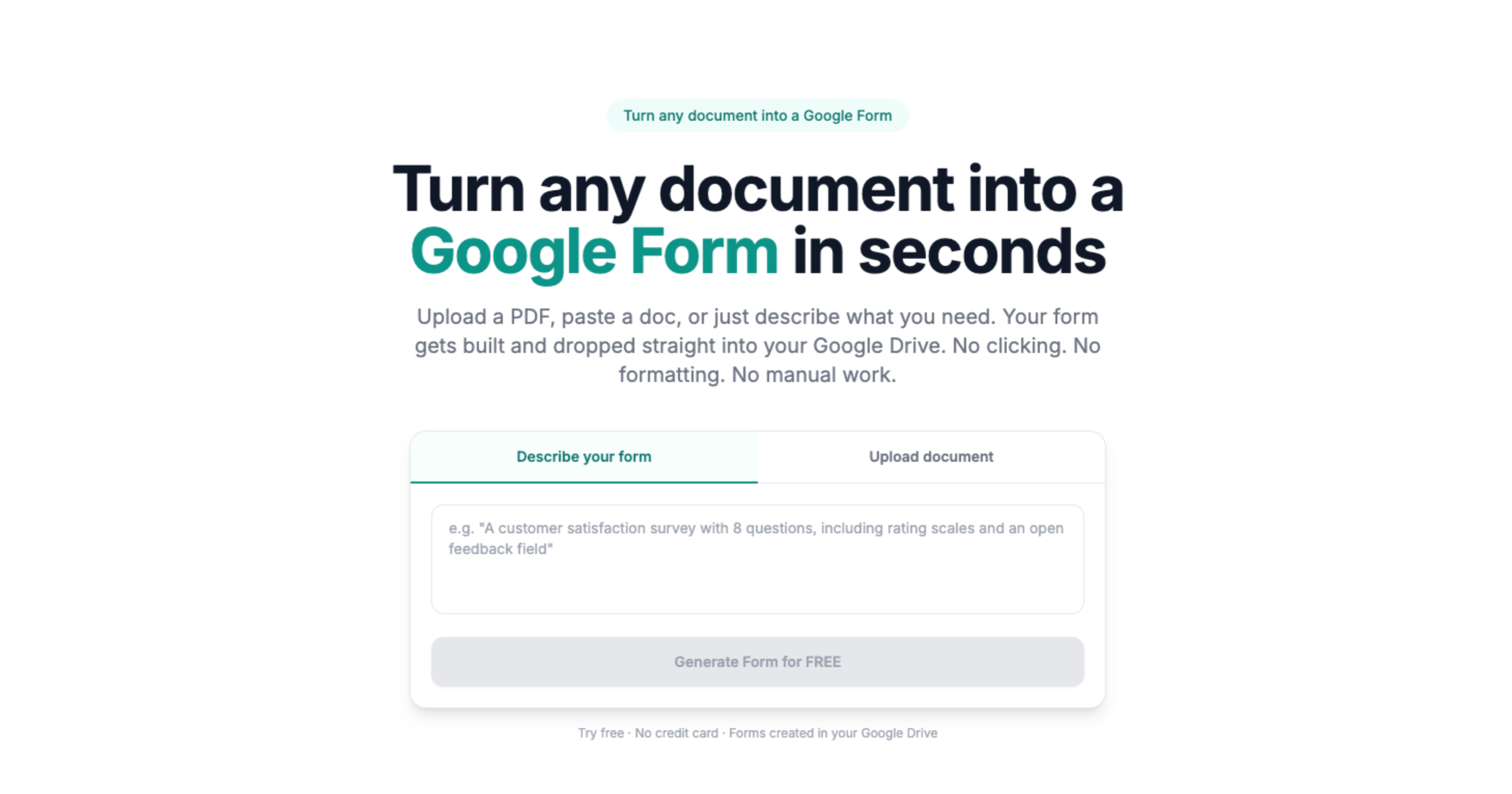
Sometimes you don't have a document to convert - you just know what form you need. Describe mode lets you skip the file entirely and go straight from an idea to a working Google Form.
This page is describe-only: type a brief and get a native Form in Drive. For the full AI Google Form generator hub (PDF, Word, image, or plain English), start there.
Here's how it works:
- Go to doc2form.dev and sign in with your Google account
- Choose "Describe" instead of "Upload"
- Type what you need in plain English. Be as specific as you like - mention question types, number of questions, sections, scales, anything relevant
- Doc2Form sends your description to Gemini AI, which generates a structured form specification
- The Google Forms API creates a native Google Form in your Drive
- You get an edit link and a share link - review, tweak, and send
The more detail you include in your description, the better the output. But even a short sentence like "customer feedback form with NPS question" produces a usable starting point.
Based on a sample of 1,775 Google Forms generated by Doc2Form users, containing 55,761 questions across 47 languages. That is an average of 31 questions per form - roughly 21 minutes saved per form versus rebuilding each question by hand in the Forms editor (assuming ~40 seconds per question).
Tips for better descriptions
The AI interprets your text literally, so being specific helps:
- Mention question types: "Include a 1-10 rating scale" is better than "include a rating"
- Specify the count: "10 questions" gives the AI a clear target
- Name the sections: "Section 1: Personal info. Section 2: Feedback" creates actual form sections
- Describe the audience: "For new hires" or "for conference attendees" helps the AI pick relevant fields
- List specific fields: "Name, email, department, start date" gets you exactly those fields
Example descriptions that work well:
Employee onboarding form with 15 questions. Sections: personal info
(name, email, phone, emergency contact), equipment needs (laptop
preference, monitor size), HR paperwork (t-shirt size, dietary
restrictions, parking pass). Mix of short answer and multiple choice.
Post-event feedback survey. 8 questions. Include an NPS question
(0-10 scale), 3 multiple-choice questions about session quality,
2 open-ended questions about improvements, and a checkbox for
topics they'd like to see next time.
Do it yourself - free with Google Apps Script
Doc2Form is open source. You can run describe mode yourself using Google Apps Script and a free Gemini API key.
Here's the setup:
- Get a free Gemini API key from Google AI Studio
- Go to Google Apps Script and create a new project
- Copy the files from the Doc2Form GitHub repo:
code.gs,Prompts.gs,Index.html, andappsscript.json - Add your API key as a script property (
GEMINI_API_KEY) - Deploy as a web app
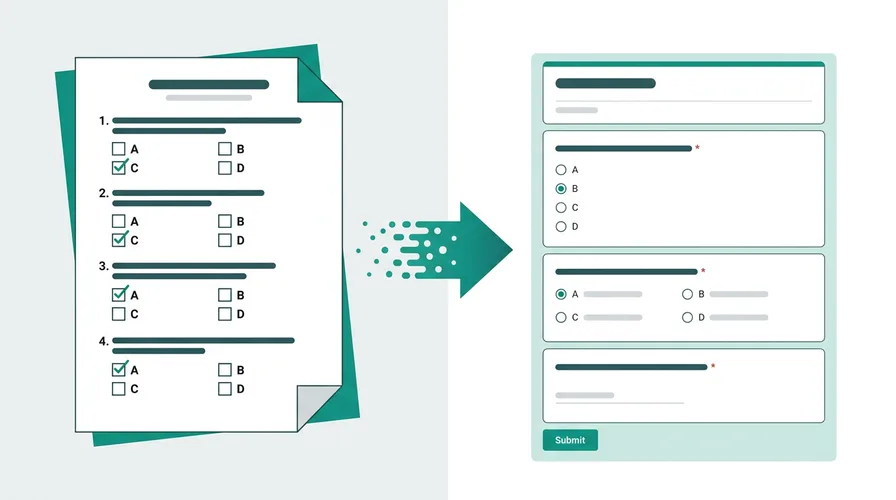
The describe mode sends your text directly to Gemini as a prompt. The AI returns structured JSON with questions, types, and options. Then the Google Forms API builds the form. No document parsing needed - it's the simplest flow in the app.
The repo also includes 8 ready-made prompt templates (feedback, RSVP, job application, quiz, and more) that you can customize in Prompts.gs.
Full setup takes about 5 minutes. Instructions are in the README.
Limitations - what to expect
- Ambiguous descriptions: Vague prompts like "make a form" produce generic results. The more specific you are, the better the output.
- Complex logic: Describe mode can create sections and varied question types, but it won't generate conditional branching (show question B only if answer A is "yes"). You can add that manually in Google Forms after creation.
- Not a replacement for templates: If you have a specific document you need replicated, upload mode will be more accurate than trying to describe it.
The closest prompt-to-Form competitor is FormGPT, including a studio preview and the ability to append to a live form. Side-by-side: Doc2Form vs FormGPT.
Sources
- Google Forms API - programmatic form creation after AI extracts structure from your file.
- Google Apps Script - runtime for the open-source self-host path in your Google account.
- Gemini API - document structure analysis for question and field detection.
Common questions
How specific do I need to be?
As specific as you want. "Feedback form" works but produces something generic. "Post-training feedback form with 8 questions including a 1-5 scale on instructor quality, multiple choice on session length preference, and open text for suggestions" produces exactly what you described.
Can I use describe mode and then edit the form?
Yes. The generated form is a standard Google Form in your Drive. You can add questions, reorder them, add images, change settings - anything you'd do with a form you created manually.
Are there ready-made templates?
The open-source version includes 8 prompt templates: feedback survey, RSVP, job application, quiz, customer intake, event registration, course evaluation, and more. These are starting points - you can customize them or write your own descriptions.
Is it really free?
Your first form is free - no credit card needed. After that, credit packs are available. Or self-host the open-source version for unlimited free conversions.