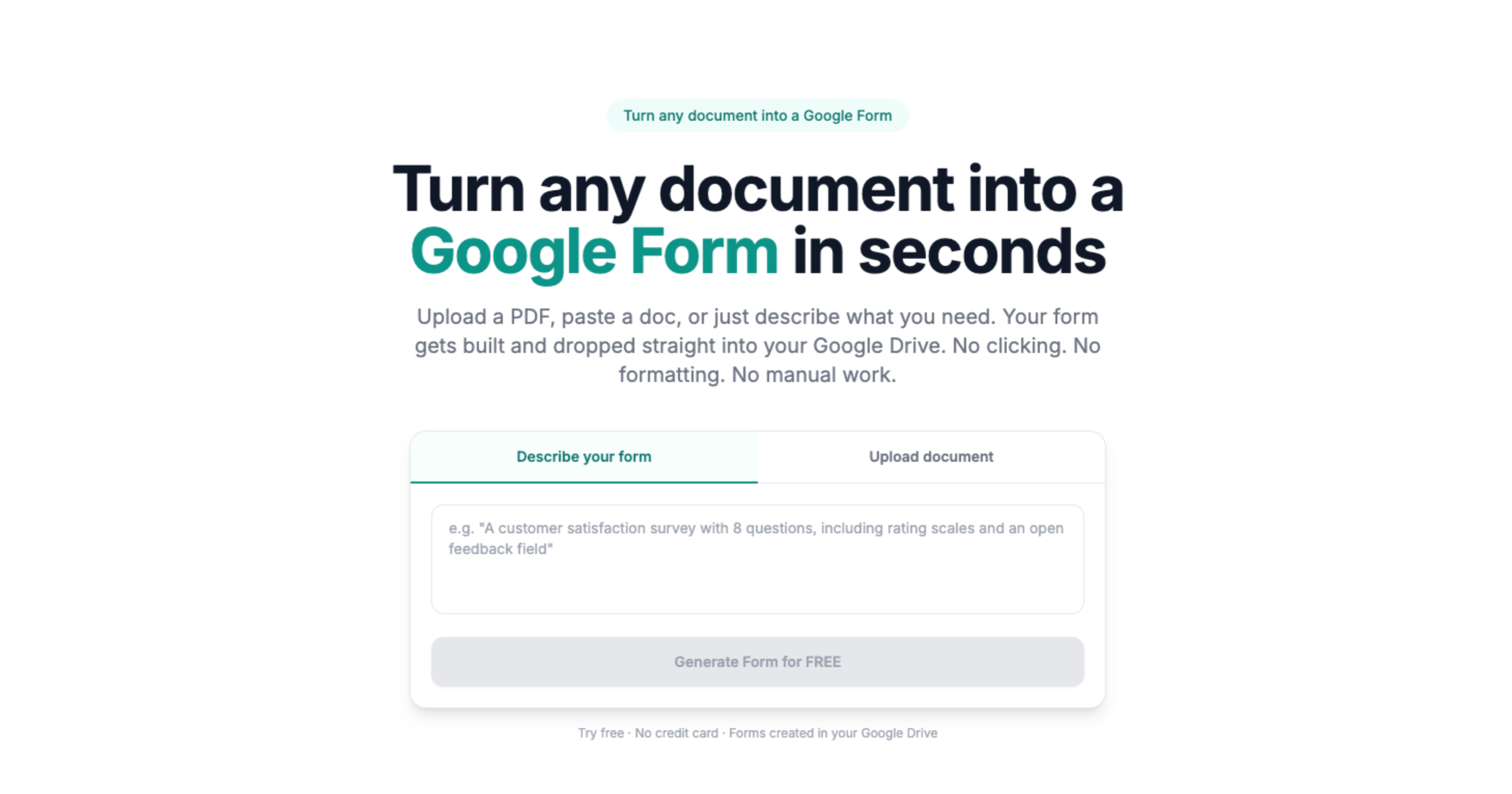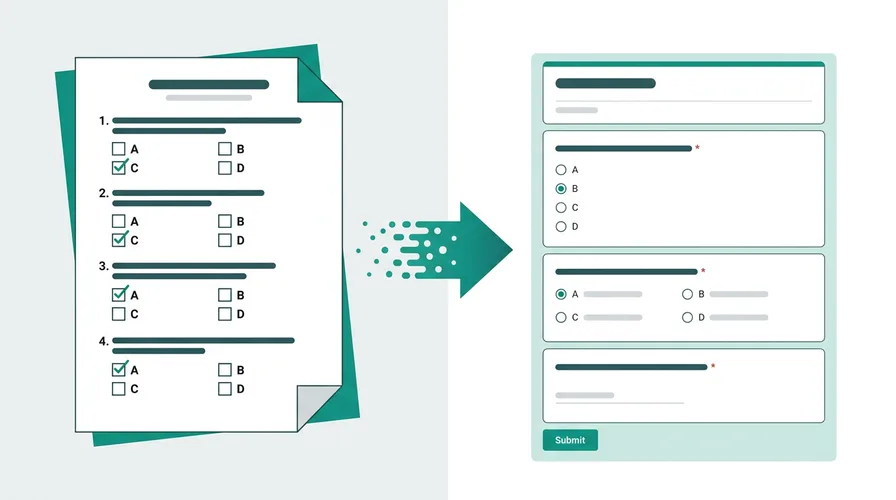
Upload any .docx file. Your Google Form is ready in 60 seconds.
Word document to Google Form conversion is ideal when your source of truth lives in Microsoft Word - numbered lists, tables, and headings give the model clear cues. No copy-paste into the Forms editor.
How to convert a Word document to a Google Form with Doc2Form
Google Forms has no import option for Word files. You can't open a .docx and turn it into a form natively. Doc2Form handles that conversion for you.
Here's how it works:
- Go to doc2form.dev and sign in with your Google account
- Choose "Upload" and select your .docx file (up to 5 MB)
- Doc2Form uses Mammoth.js to extract the text and formatting from your Word document, then sends the content to Gemini AI
- The AI identifies questions, answer options, sections, and field types from the document structure
- The Google Forms API creates a native Google Form in your Drive
- You get an edit link and a share link - review, adjust, and share
Word documents tend to convert especially well because they carry rich formatting - bold headings, numbered lists, tables with options - that gives the AI clear signals about what's a question and what's an answer choice.
Based on a sample of 1,775 Google Forms generated by Doc2Form users, containing 55,761 questions across 47 languages. That is an average of 31 questions per form - roughly 21 minutes saved per form versus rebuilding each question by hand in the Forms editor (assuming ~40 seconds per question).
What Doc2Form detects in your Word document
Word formatting maps directly to form field types:
- Numbered/lettered lists under a question become multiple-choice or checkbox fields
- Tables with options become dropdown menus or grid questions
- Bold or underlined text is recognized as question headers
- Paragraph fields ("Please describe...") become paragraph text entries
- Short blanks (name: ______) become short text fields
- Section headings (Heading 1, Heading 2) become form sections
- Page breaks translate to section breaks in the form
The cleaner your Word formatting, the better the result. Documents that use Word's built-in styles (Heading 1, List Number, etc.) rather than manual formatting tend to convert most accurately.
Convert a Word document to a Google Form
Searchers often ask word to google form or convert word to google form when they have a .docx questionnaire, not a blank Forms template. Doc2Form is built for that job: upload the file, let Gemini read numbered questions and option lists, and get a native Google Form in Drive instead of pasting line by line into the editor. Word beats plain text because bold headings, list styles, and simple tables tell the model what is a question stem versus an answer choice. For the same workflow starting from Google Docs, export to .docx first and follow Google Doc to Google Form.
Doc to form conversion
Doc to form can mean an old .doc file, a Google Doc, or any "document to form" upload. Doc2Form accepts modern .docx on upload (save legacy .doc as .docx in Word or Google Docs). The conversion path is the same: Mammoth extracts structure, Gemini maps field types, the Forms API writes the Form. If you do not have a file ready, describe mode covers doc to form converter free style workflows from a text brief. For all AI input paths (PDF, Word, image, or plain English), see the AI Google Form generator hub. Heavier PDF sources belong on PDF to Google Form. Google Docs users should export to .docx and follow Google Doc to Google Form.
Do it yourself - free with Google Apps Script
Doc2Form is open source. You can run the whole thing for free using Google Apps Script and a Gemini API key.
Here's the setup:
- Get a free Gemini API key from Google AI Studio
- Go to Google Apps Script and create a new project
- Copy the files from the Doc2Form GitHub repo:
code.gs,Prompts.gs,Index.html, andappsscript.json - Add your API key as a script property (
GEMINI_API_KEY) - Deploy as a web app
For Word files specifically, the script uses Mammoth.js (bundled in the Apps Script project) to extract clean text from the .docx format. That extracted text is then sent to Gemini for structure analysis.
// Word processing flow (simplified from code.gs)
// 1. .docx bytes → Mammoth.js → clean text
// 2. Text → Gemini API → structured JSON
// 3. JSON → Google Forms API → form in Drive
Full setup takes about 5 minutes. Instructions are in the README.
Limitations - what to expect
- File size: 5 MB max (Google Apps Script constraint)
- Complex tables: Simple tables convert well. Heavily nested or merged-cell tables may lose structure.
- Images in documents: Doc2Form extracts text, not images. If your Word document has image-based questions, those won't transfer.
- Formatting-free docs: Plain text Word files without clear question formatting will produce less accurate results. The more structured your document, the better the output.
Choosing a tool rather than a file type: Form to Doc is the free Workspace add-on that also exports Forms back out, and the PDF converter roundup covers Word input on every tool in the short list.
Sources
- Google Forms API - programmatic form creation after AI extracts structure from your file.
- Google Apps Script - runtime for the open-source self-host path in your Google account.
- Gemini API - document structure analysis for question and field detection.
Common questions
Does Google Forms have an import feature for Word files?
No. Google Forms cannot import a .docx or Word document. You would retype every question manually. Doc2Form reads the Word file with Mammoth + Gemini and creates the Form via the Google Forms API.
How do I import a Word document into Google Forms?
Upload the .docx to Doc2Form, sign in with Google, and open the generated Form in Drive. That is the practical import word to google form path when Forms has no native import.
Why not just copy-paste from Word to Google Forms?
Copy-paste works for 3 questions. It falls apart for 30. You lose all structure - every dropdown option, every section break, every checkbox group has to be recreated manually. Doc2Form preserves the structure automatically.
Does it support .doc files (old Word format)?
Doc2Form works with .docx (modern Word format). If you have an old .doc file, open it in Word or Google Docs and save as .docx first.
Can I convert a Google Doc instead?
Google Forms cannot import a Doc directly. Export the Doc as .docx (File → Download → Microsoft Word) and upload that file, or read the full workflow on Google Doc to Google Form.
How accurate is the conversion from Word?
Word documents typically convert better than PDFs because the formatting carries more structural information. Most well-formatted .docx files convert cleanly; you might tweak a label or fix an option, but the heavy lifting is done. Always review before sharing.
Is it really free?
Your first form is free - no credit card needed. After that, credit packs are available. Or self-host the open-source version for unlimited free conversions.