How to convert a document to a Google Form with Doc2Form
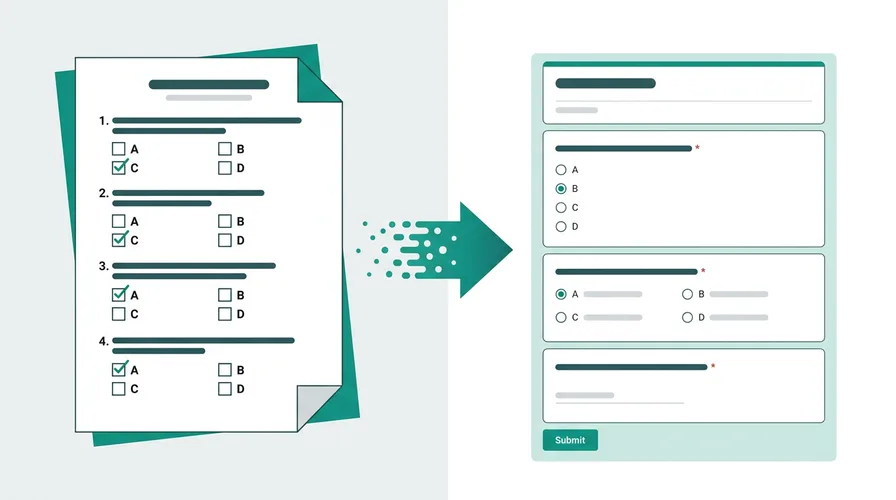
Google Forms doesn't have a built-in import feature. You can't upload a file and get a form. That's the problem Doc2Form solves - it reads your document, extracts the questions, and creates a real Google Form in your Drive.
Doc to form searches often mean any file-to-Form job: PDF packet, Word survey, or Google Doc export. This hub covers all three paths. For AI across inputs, start at the AI Google Form Generator.
Here's how it works:
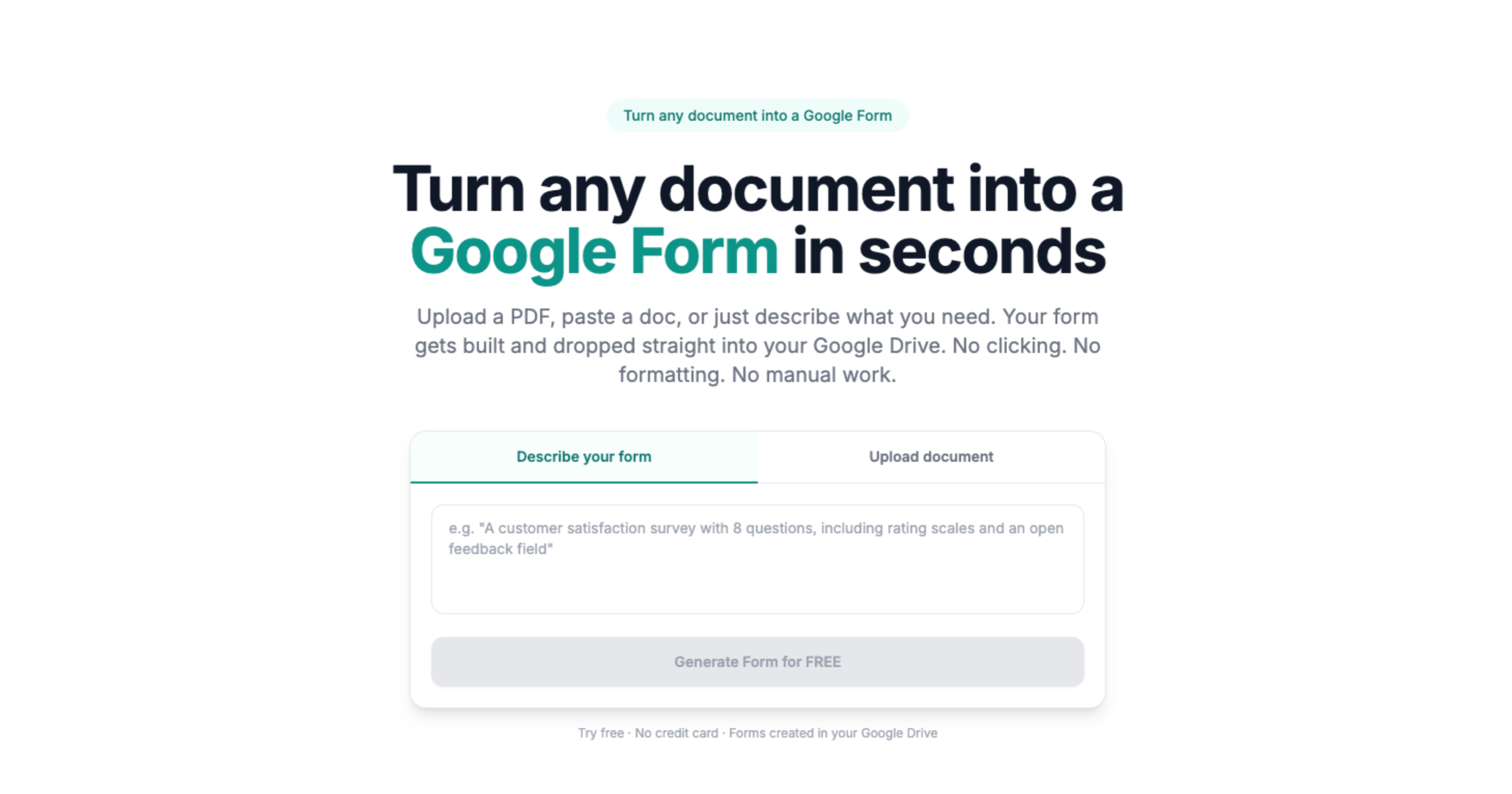
- Go to doc2form.dev and sign in with your Google account
- Choose "Upload" for a file, or "Describe" if you don't have a document yet
- For uploads: select a PDF or Word file (up to 5 MB). For descriptions: type what you need in plain English
- Doc2Form sends your content to Gemini AI, which identifies questions, answer options, field types, and section breaks
- The Google Forms API creates a native Google Form in your Drive with the extracted structure
- You get an edit link and a share link - review, tweak anything, and share
The process takes under a minute for most documents. Your files aren't stored after the form is created.
Based on a sample of 1,775 Google Forms generated by Doc2Form users, containing 55,761 questions across 47 languages. That is an average of 31 questions per form - roughly 21 minutes saved per form versus rebuilding each question by hand in the Forms editor (assuming ~40 seconds per question).
Supported document types
Doc2Form handles different input types, each with its own processing path:
| Format | How it's processed | Best for |
|---|---|---|
| PDF (.pdf) | Sent as binary to Gemini AI for text + structure extraction | Surveys, applications, quizzes, intake forms |
| Word (.docx) | Mammoth.js extracts text and formatting, then AI analyzes structure | Tests, questionnaires, checklists, templates |
| Google Doc | Export as .docx or PDF, then upload (see Google Doc to Google Form) |
Team templates and drafts that live in Docs |
| Plain text | Your description goes directly to Gemini as a prompt | Building forms from scratch without a source document |
| Scanned PDF | OCR-style processing through Gemini's vision capabilities | Paper forms with clear printed text |
For detailed guides on each format, see PDF to Google Form, Word to Google Form, Google Doc to Google Form, and Image to Google Form.
What Doc2Form detects in your document
The AI maps document content to Google Form question types:
- Multiple choice (A/B/C/D options, radio buttons) → multiple-choice fields
- Checkboxes ("select all that apply") → checkbox fields
- Short answer (name, email, ID number) → short text fields
- Long answer ("describe your experience") → paragraph fields
- Dropdowns (predefined option lists) → dropdown menus
- Rating scales (1-5, 1-10, Likert) → linear scales
- Date and time → date/time pickers
- Grid/matrix (rate multiple items on one scale) → grid fields
- Sections (page breaks, section headers) → form sections
11 question types are supported - the full set that Google Forms offers.
Do it yourself - free with Google Apps Script
Doc2Form is open source. You can self-host it for free using Google Apps Script and a Gemini API key.
Here's the setup:
- Get a free Gemini API key from Google AI Studio
- Go to Google Apps Script and create a new project
- Copy the files from the Doc2Form GitHub repo:
code.gs,Prompts.gs,Index.html, andappsscript.json - Add your API key as a script property (
GEMINI_API_KEY) - Deploy as a web app
The script handles both upload mode (PDF and Word) and describe mode. PDFs are sent as base64 binary to Gemini, Word files are processed through Mammoth.js first, and descriptions go directly as prompts. All three paths end with the Google Forms API creating the form.
Full setup takes about 5 minutes. Instructions are in the README.
Limitations - what to expect
- File size: 5 MB max per document (Google Apps Script constraint)
- Image-only content: Text embedded in images, charts, or diagrams isn't extracted. The document needs readable text.
- Complex layouts: Multi-column forms, heavy graphics, or non-standard formatting may produce less accurate results. Simple, linear layouts convert best.
- Not 100% perfect: Always review the generated form before sharing. Think of it as a first draft - most well-formatted files convert cleanly, and you fix labels before sharing.
For a field-wide view, see 6 free ways to convert a document to a Google Form and the 8 best PDF to Google Form converters. Both live under comparisons.
Sources
- Google Forms API - programmatic form creation after AI extracts structure from your file.
- Google Apps Script - runtime for the open-source self-host path in your Google account.
- Gemini API - document structure analysis for question and field detection.
Common questions
What is a doc to form converter?
A doc to form converter reads a document (PDF, Word, or export from Google Docs) and builds an online form. Doc2Form outputs a native Google Form in your Drive, not a proprietary hosted form.
Is there a free doc to form converter?
Yes. Your first conversion on doc2form.dev is free. Or self-host the open-source Apps Script project with your own Gemini key.
Which format produces the best results?
Word (.docx) documents tend to convert most accurately because they carry rich formatting information. Digitally-created PDFs are a close second. Scanned PDFs depend heavily on scan quality.
Can I convert multiple documents at once?
Currently Doc2Form handles one document at a time. Upload one, get a form, then upload the next.
What happens to my document after conversion?
Documents are processed to extract the form structure and then discarded. Doc2Form doesn't store your files.
Does the generated form look exactly like my document?
The form preserves the question structure - field types, options, sections - but not the visual layout. Google Forms has its own styling. If you need exact visual replication, Google Forms isn't the right tool.
Is it really free?
Your first form is free - no credit card needed. After that, credit packs are available. Or self-host the open-source version for unlimited free conversions.