AI vision reads your form image - even messy ones
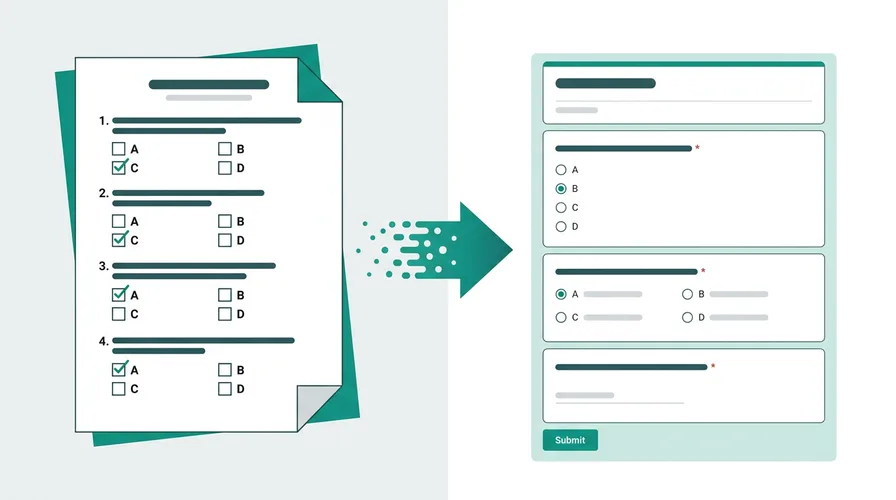
Image to Google Form (and image to form converter searches) cover the same job: when the source is a picture, not a clean PDF. Doc2Form runs the same vision pipeline as scanned PDF to Google Form so you are not stuck retyping labels and checkboxes. For all AI input types, see the AI Google Form Generator hub.
How image-to-form conversion works in Doc2Form
You don't always have the original file. Sometimes all you have is a photo of a paper form taped to a wall, a screenshot of a form from another tool, or a camera capture of a document someone handed you.
Doc2Form accepts image files and uses Gemini AI's vision capabilities to read the text, identify questions, and build a Google Form:
- Go to doc2form.dev and sign in with your Google account
- Choose "Upload" and select your image file (JPG, PNG, or save your photo as a PDF - up to 5 MB)
- Doc2Form sends the image to Gemini AI, which reads the visible text and identifies form structure
- The AI maps what it finds to Google Form question types - multiple choice, checkboxes, short answer, scales
- The Google Forms API creates a Google Form in your Drive
- You review, fix any misread text, and share
Image conversion is the most quality-dependent input type. A well-lit, high-resolution photo of a clearly printed form can produce great results. A blurry, angled photo of a handwritten note will struggle.
Based on a sample of 1,775 Google Forms generated by Doc2Form users, containing 55,761 questions across 47 languages. That is an average of 31 questions per form - roughly 21 minutes saved per form versus rebuilding each question by hand in the Forms editor (assuming ~40 seconds per question).
Tips for taking good form photos
The AI reads text from pixels, so image quality matters more than anything else:
- Lighting: Even, natural light is best. Avoid shadows across the page and direct flash that creates glare.
- Angle: Photograph the form straight-on (perpendicular to the camera). Angled shots distort text and make detection harder.
- Focus: Make sure all text is sharp and in focus. Most phone cameras auto-focus, but double-check before uploading.
- Cropping: Crop out everything that isn't the form - desk surface, other papers, your hand. Less noise means better extraction.
- Resolution: Higher is better. A modern phone camera (12 MP+) at normal distance produces more than enough resolution.
- Flat surface: Lay the paper flat. Wrinkled, folded, or curled pages create text distortion.
What gets detected from images
With a good image, Doc2Form can identify:
- Printed question text with clear numbering or bullet points
- Checkbox squares and radio circles with their labels
- Answer options listed below questions
- Blank lines indicating text entry fields
- Section headers in larger or bold font
- Table structures with rows and columns
What typically doesn't work well:
- Handwritten text - AI may misread or skip handwritten content
- Stylized fonts - decorative or script fonts are harder to parse than standard print
- Low contrast - light text on light backgrounds, or colored text on patterned backgrounds
- Multiple overlapping forms - one form per image for best results
Do it yourself - free with Google Apps Script
Doc2Form is open source. You can run it for free using Google Apps Script.
Here's the setup:
- Get a free Gemini API key from Google AI Studio
- Go to Google Apps Script and create a new project
- Copy the files from the Doc2Form GitHub repo:
code.gs,Prompts.gs,Index.html, andappsscript.json - Add your API key as a script property (
GEMINI_API_KEY) - Deploy as a web app
The script sends images as base64 data to Gemini's multimodal API. The same vision capabilities that handle scanned PDFs work on standalone images.
Full setup takes about 5 minutes. Instructions are in the README.
Limitations - honest expectations
Image-based conversion is the least reliable input type. Here's what to expect:
- Accuracy depends on quality: Clear photos of printed forms usually convert cleanly; you review labels before sharing. Blurry or angled photos need more manual fixes.
- No handwriting: Handwritten forms don't convert. The AI needs printed or typed text.
- Format limitations: Save images as PDF before upload if your image format isn't supported. JPG and PNG via PDF wrapper work reliably.
- Better alternatives: If you can get the original PDF or Word file, always use that. If the form is simple enough to describe, describe mode may be faster and more accurate than photographing it.
Photo-of-paper is the same job as a scan. See scanned PDF to Google Form and how the PDF converter roundup ranks tools that actually read pixels.
Sources
- Google Forms API - programmatic form creation after AI extracts structure from your file.
- Google Apps Script - runtime for the open-source self-host path in your Google account.
- Gemini API - document structure analysis for question and field detection.
Common questions
Is it better to scan or photograph the form?
Scanning at 300 DPI produces consistently better results than phone photos. Use a scanner if you have one. If you only have a phone camera, follow the tips above for best results.
Can I screenshot a Typeform or SurveyMonkey form and convert it?
You can try, but there's a better approach. Most form platforms let you export to PDF. Use the PDF export instead - it produces cleaner text data than a screenshot.
What image formats are supported?
Save your image as a PDF for upload. If you have a JPG or PNG, you can save it as a PDF using your operating system's print-to-PDF feature, or upload the image directly if the platform supports it.
Will it work for forms in other languages?
Yes. Gemini supports many languages for text recognition. Forms in English, Spanish, French, German, and other major languages work. Character-based scripts (Chinese, Japanese, Arabic) may have reduced accuracy depending on image quality.
Is it really free?
Your first form is free - no credit card needed. After that, credit packs are available. Or self-host the open-source version for unlimited free conversions.